Submission
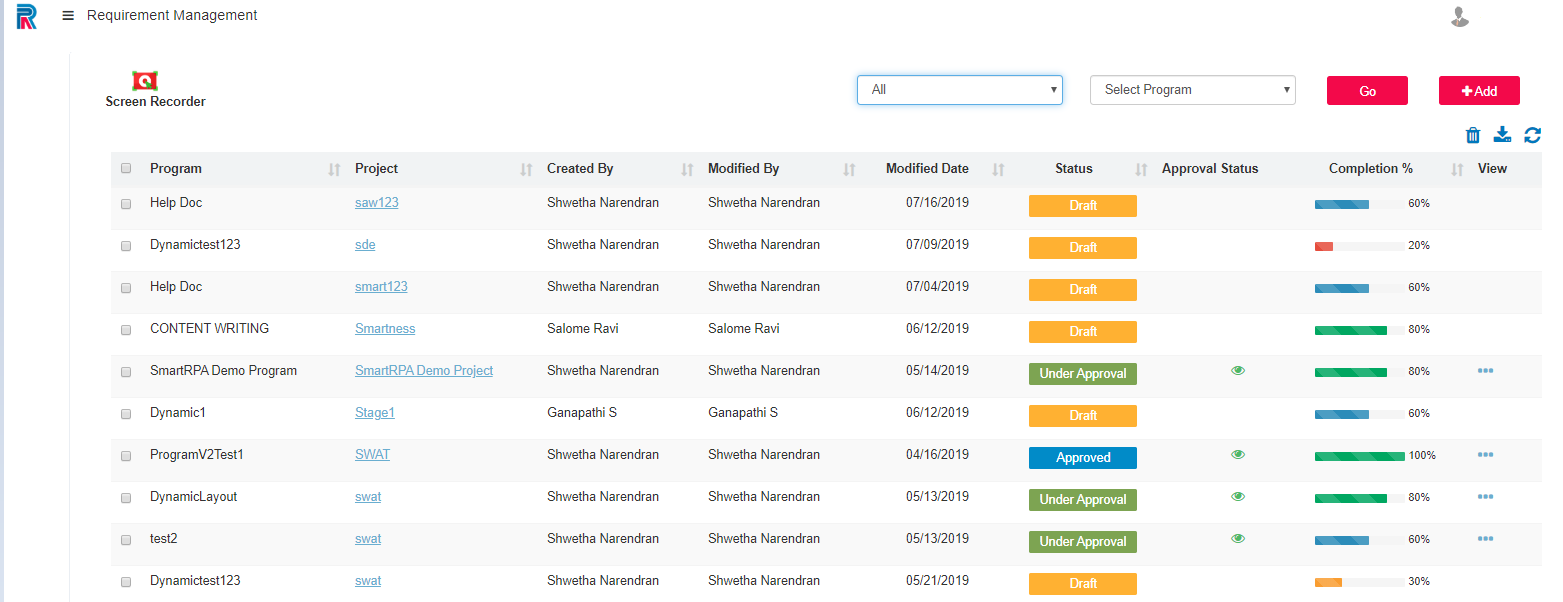
After checking all details, one is required to Submit For Approval. Click on the Paper-Plane icon.
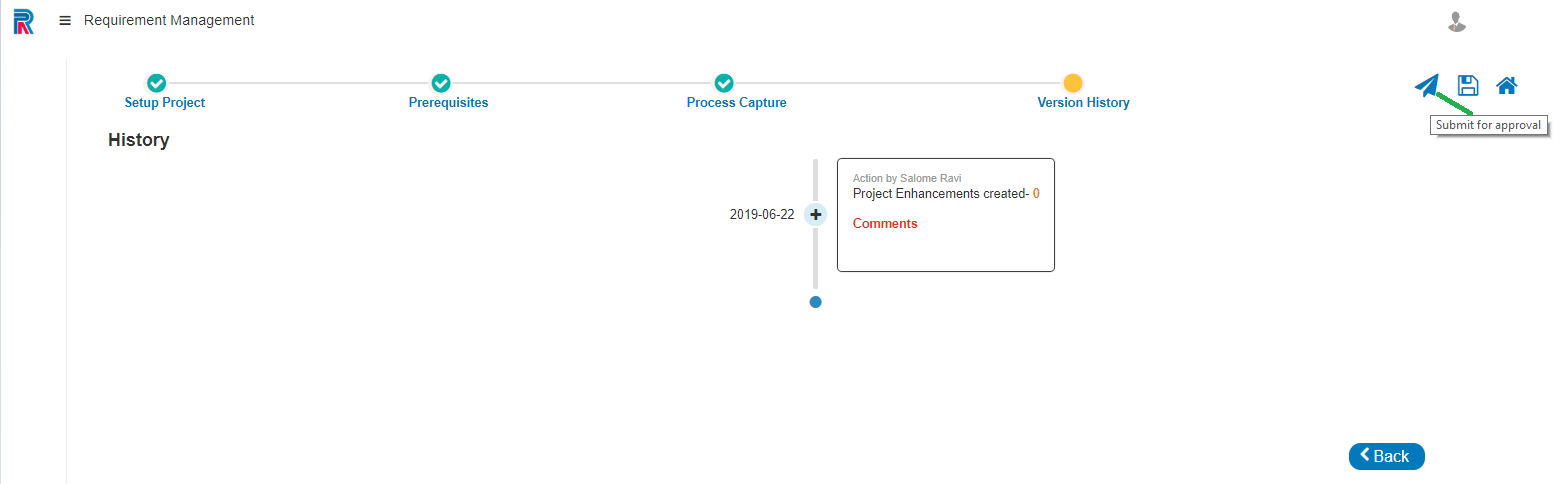
Confirm by clicking on Ok.
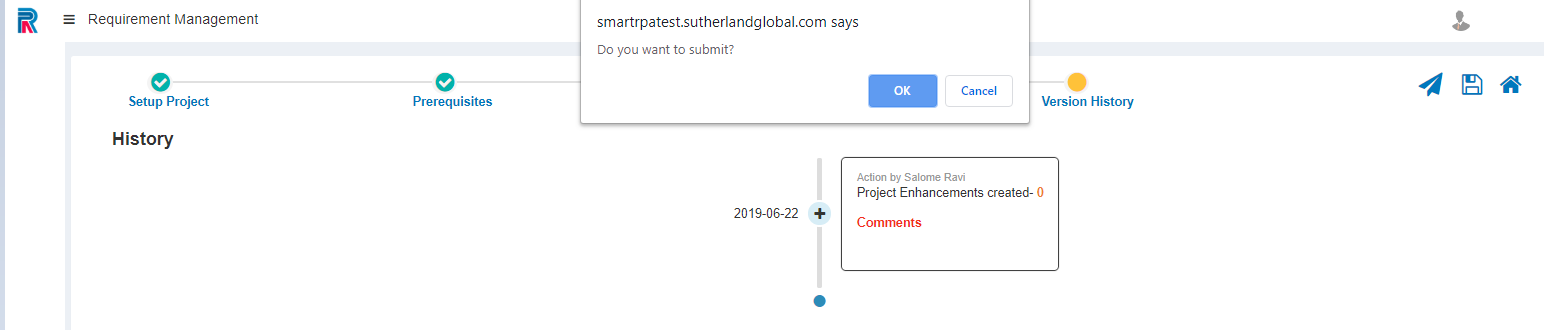
Provide appropriate comments and Save.
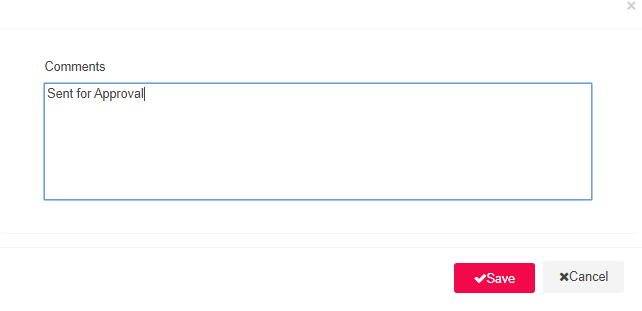
One will find the created requirement in the Under-Approval Queue. It reflects all pertaining information such as the Name of the Program and Project Name,Created By,Modified By,Modified Date, Status,Approval Status and Completion Percentage.
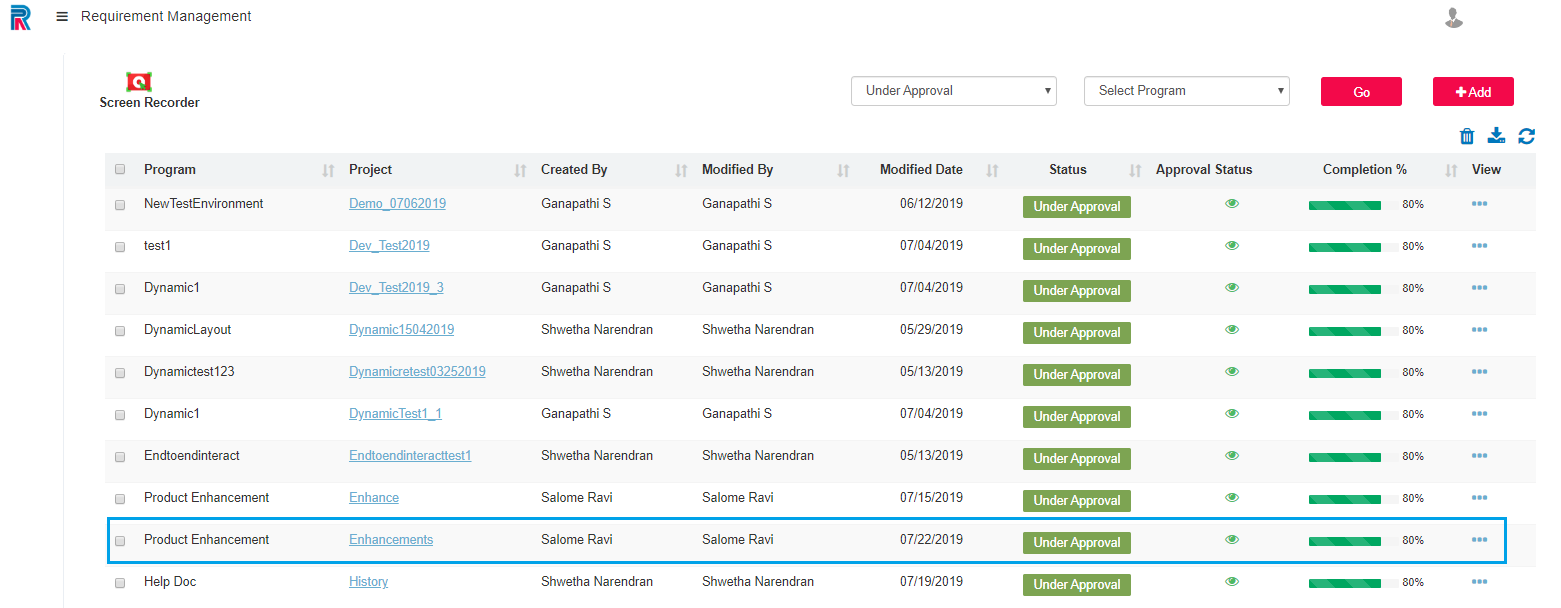
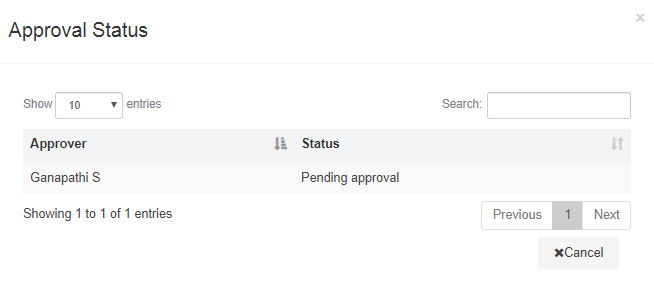
Select the Status and Program to view the requirement. The completion status is not 100 percent yet, cause it is required to be approved. The eye icon under the Approval Status will display a screen with the approver’s name and the approval status, which is shown in the ensuing image.

Upon approval, the Completion % is 100 % and the requirement will be displayed in the Approved queue. One can click on the blue ellipsis (three dots) to view the revision history in word and PDF formats. One can view the entire proceedings by clicking on the Project URN.
 Note:
Note:  the Bin icon is used for
deletion.
the Bin icon is used for
deletion.  The download icon is used for downloading
the selected requirement.
The download icon is used for downloading
the selected requirement. The chasing arrows icon is used to
refresh the present screen the user is using.
The chasing arrows icon is used to
refresh the present screen the user is using.
The requirements in the various status with the completion percentage is displayed as seen in the following image .